
Overview
Employee cost list screen is used for managing daily expenses of employee.
It can be accessed from employee cost main menu.
Adding a New Employee Cost
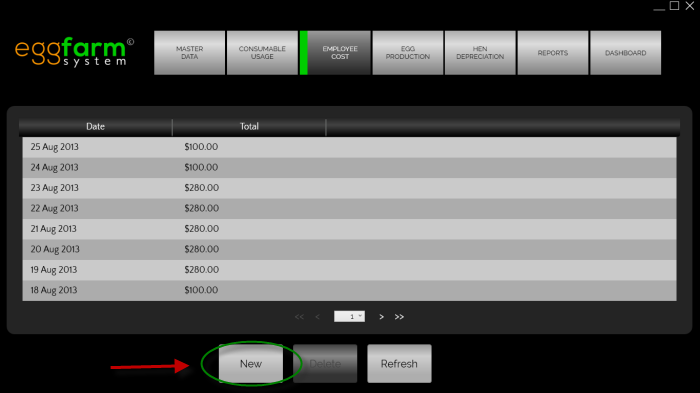 To add a new employee cost, you will need to press the "New" button in employee cost list screen.
You will enter employee cost entry screen after that.
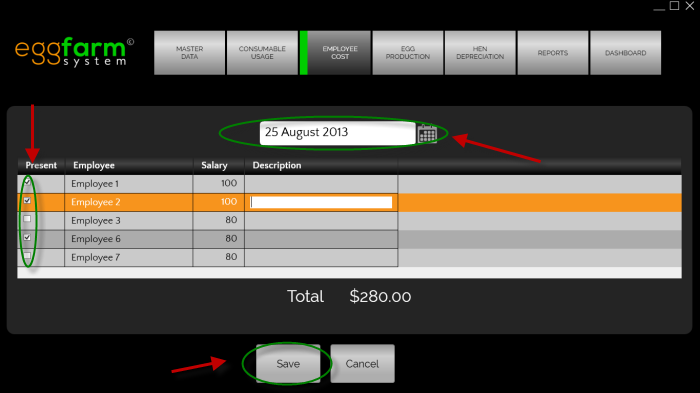 The employee cost entry consists of several important fields:
-
Date
The date field is represented by a date picker in the middle. Bear in mind that there could only be 1 date for every employee cost -
Present
Present column determines whether an employee is present at that date. You need to tick the checkbox to mark an employee present. -
Salary
Employee salary, by default the value is equal as in the employee screen in masterdata, but you can adjust it if necessary. -
Description
If necessary put description, notes etc in here.
Once you've finished editing you will need to click "Save" button.
Editing Employee Cost
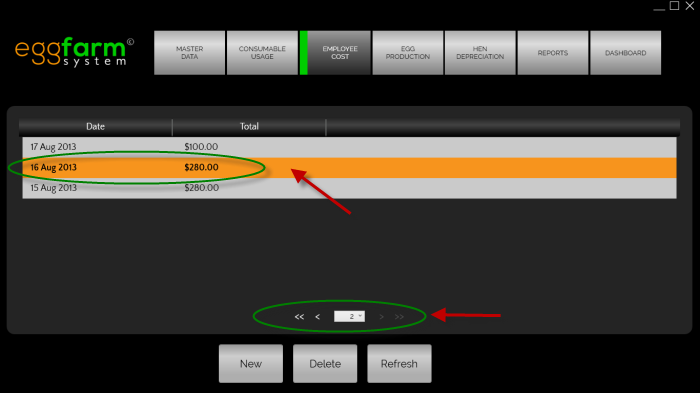 To edit an employee cost data, you will need to be in employee cost list screen.
Just double click the corresponding employee cost data to continue to employee cost entry screen.
Deleting Employee Cost
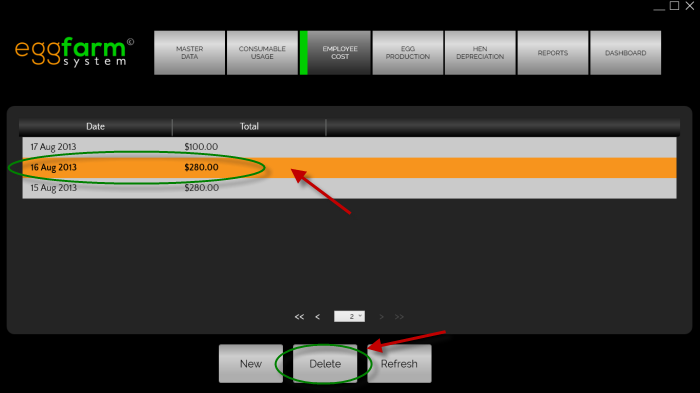 To delete an employee cost data, you will need to be in employee cost list screen.
You will need to select the employee cost data from the list, then press the "Delete" button.